Primary links

jHiccup Documentation

Quick Links

Using jHiccup
Installing jHiccup
Running jHiccup
Viewing the jHiccup data (sample graphs)
Analyzing jHiccup data
Sample log data
Sample histogram data

Using jHiccup
Azul's open source tool, jHiccup collects data to identify the frequency and duration of pause times (hiccups) that occur while a JVM runs a Java application. jHiccup works with any JVM. Comparing this data with your overall Java application pause time performance helps isolate where your pause times are generated, so you can maximize solutions to reduce your Java application pause time.

jHiccup is issued as an addition to your JVM-Java application initiating command. It runs in the background for the duration of your active Java application. At regular reporting intervals, jHiccup saves data into two files. At any point during the running or after the Java application terminates, you can view the files directly or use the included Excel utility to view tracking charts created using the collected data. 

Top »

Installing jHiccup
To install jHiccup, go to the Azul Systems website and download the jHiccup tarball.
1. From Azul Systems website, download the jHiccup tarball.
2. In the directory where you issue your Java application start command, expand the tarball. For example:
tar -xvf jHiccup.tar
The expanded .tar file includes the jHiccup binary and sample Excel file.

Top »

Running jHiccup
To use jHiccup, include the script command in your Java application start command.

For example, if your program were normally executed as:

java <Java args> UsefulProgram -a -b -c

The launch line would become:

jHiccup java <Java args> UsefulProgram -a -b -c

or, for a program launched with:

/usr/bin/java <Java args> -jar UsefulProgram.jar -a -b -c

The launch line would become:

jHiccup /usr/bin/java <Java args> -jar UsefulProgram.jar -a -b -c

or, to override the defaults by making the recording start delay 60 seconds and log to logfiles hlog and hlog.histogram, it would become:

jHiccup -d 60000 -l hlog /usr/bin/java <Java args> -jar UsefulProgram.jar -a -b -c

The jar file also includes a simple "Idle" class to facilitate sanity checks without an external program. Here is a simple sanity test example: jHiccup with a 4 sec delay on recording start, wrapping an Idle run that does nothing for 30 seconds and exits:

% jHiccup -d 4000 /usr/bin/java org.jhiccup.Idle -t 30000

By default, jHiccup records sample data every millisecond (ms), records updated interval information to log files every 5 seconds. Recorded values are stored in two files located in the directory where the command was executed.

Top »

Viewing the jHiccup Data

jHiccup records hiccup durations observed by the applicaton it wraps. It produces two log files that are updated at each recording interval (which defaults to 5 seconds). The two log files are:

  • hiccup.<identifier>.log  A single line entry is appended to the log file at every recording interval. Each entry line lists the hiccup duration of certain percentiles (50%, 90%, Max) of samples collected in the past recording interval, as well as aggeragate percentiles (50%, 90%, 99%, 99.9%, 99.99%, Max) for samples accumulated since the begining of the jHiccup run.
  • hiccup.<identifier>.hgrm  This file is updated in it's entirety with each recording interval. It contains detailed histogram data showing the distribution of hiccup duration by percentile for the entire jHiccup run.

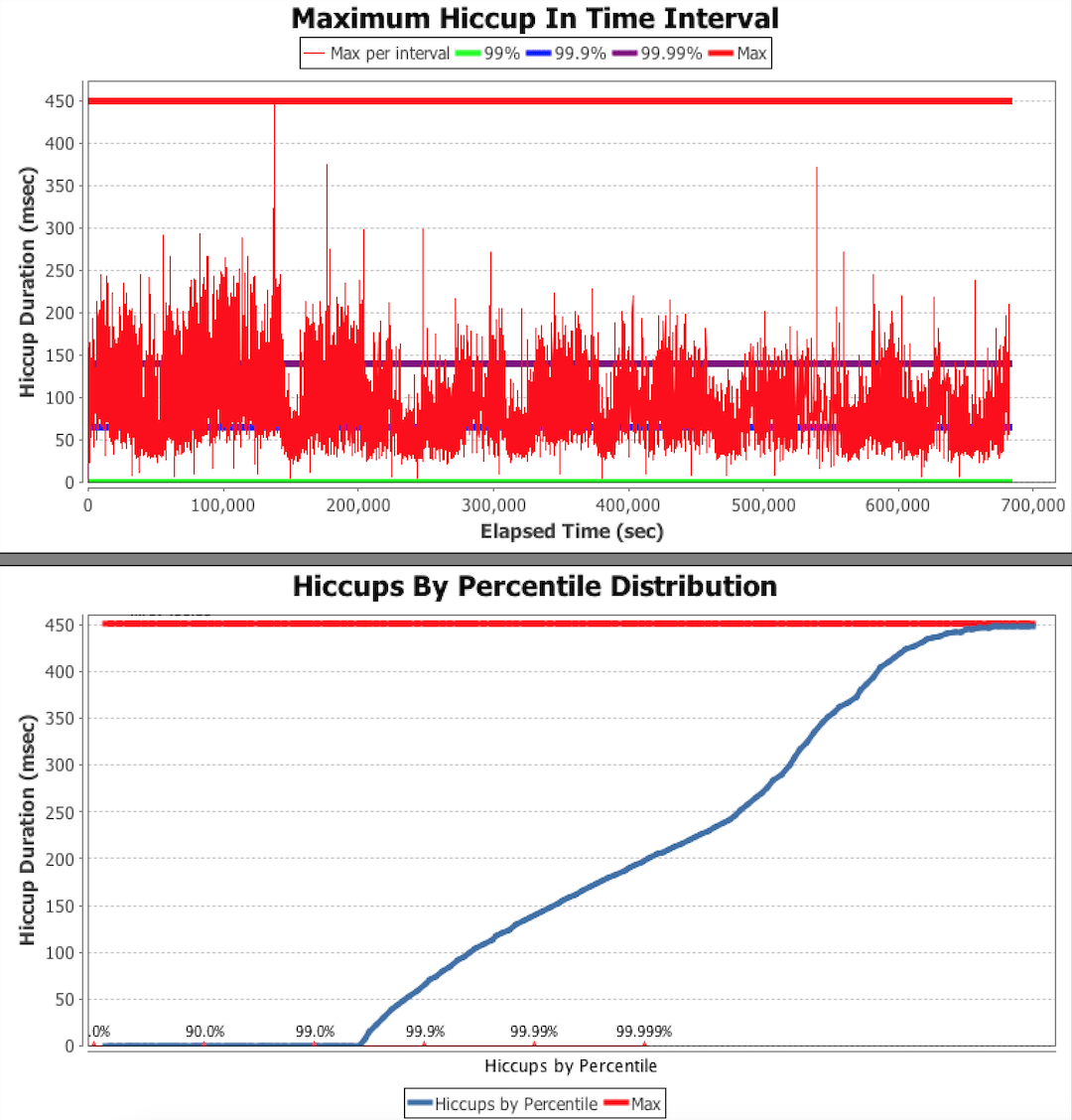
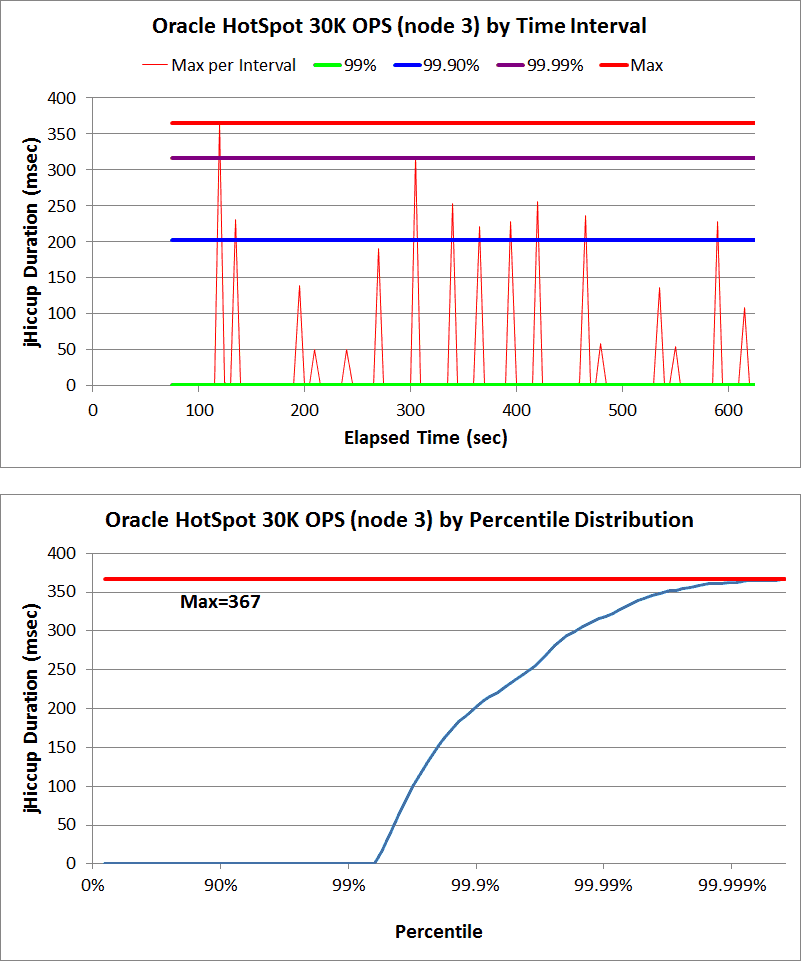
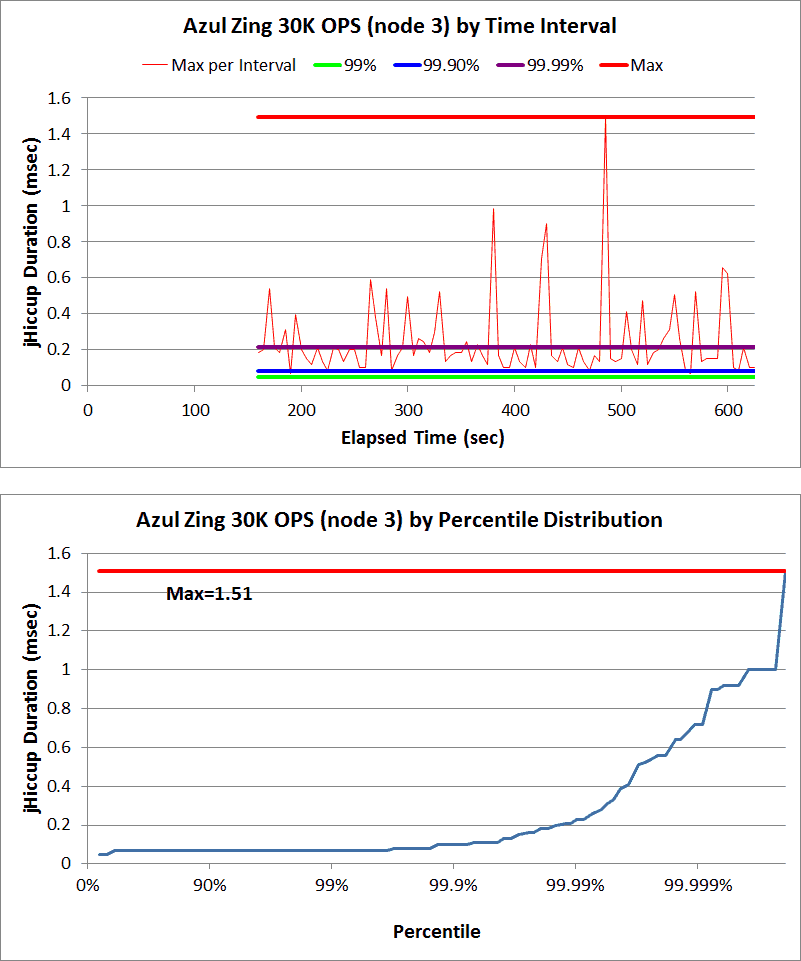
While you can read the jHiccup log files as plain text, the output can be interpreted in Hiccup Chart form by using the included jHiccupPlotter Excel workbook. jHiccupPlotter.xls is programmed to automatically import log data and chart it.

To view the stored files:

  1. Locate the files. They are placed in the directory where the Java application command was executed.
  2. Use any text editor to view the files.

To view the graph charts:

  1. Locate the Excel file included in and expanded from the jHiccup tarball. Excel worksheet, comes with tarball.
  2. Copy the Excel file to a system that has Microsoft Excel installed.Note: Ensure this system is networked to the system where the jHiccup output files are located, that is, the system where you run your Java application.
  3. Locate the jHiccup output files. They are placed in the directory where the Java application command was executed.
  4. Open the Excel file.
  5. jHiccup charting menu

  6. Enter the path to the jHiccup output files.
  7. Click the GO button. 

Top »

Analyzing the jHiccup Data

For details on analyzing jHiccup Data go to the Analyzing Data tab.

Sample jHiccup.log File

The following is a sample of entries in the jHiccup.log file.

Time: IntervalPercentiles:count ( 50% 90% Max ) TotalPercentiles:count ( 50% 90% 99% 99.9% 99.99% Max )
5.004: I:4723 (   0.059   0.059   0.400 ) T:4723 (   0.059   0.059   0.060   0.069   0.400   0.400 )
10.091: I:4804 (   0.059   0.059   0.381 ) T:9527 (   0.059   0.059   0.060   0.065   0.400   0.400 )
15.029: I:4670 (   0.057   0.058   0.123 ) T:14197 (   0.059   0.059   0.060   0.068   0.381   0.400 )
20.054: I:4752 (   0.057   0.058   0.083 ) T:18949 (   0.058   0.059   0.060   0.069   0.381   0.400 )
25.071: I:4747 (   0.057   0.057   0.080 ) T:23696 (   0.058   0.059   0.060   0.067   0.179   0.400 )

Top »

Sample jHiccup.histogram File
The following is a sample of an interval data in a jHiccup.histogram file.

jHiccup histogram report, Mon Dec 12 23:30:14 PST 2011 :
--------------------

Value, Percentile, TotalCountIncludingThisValue

     0.014 0.0000000          1
     0.057 0.1000000      12038
     0.057 0.2000000      12038
     0.057 0.3000000      12038
     0.057 0.4000000      12038
     0.058 0.5000000      16163
     0.058 0.5500000      16163
     0.058 0.6000000      16163
     0.058 0.6500000      16163
     0.059 0.7000000      24161
     0.059 0.7500000      24161
     0.059 0.7750000      24161
     0.059 0.8000000      24161
     0.059 0.8250000      24161
     0.059 0.8500000      24161
     0.059 0.8750000      24161
     0.059 0.8875000      24161
     0.059 0.9000000      24161
     0.059 0.9125000      24161
     0.059 0.9250000      24161
     0.059 0.9375000      24161
     0.059 0.9437500      24161
     0.059 0.9500000      24161
     0.059 0.9562500      24161
     0.059 0.9625000      24161
     0.059 0.9687500      24161
     0.059 0.9718750      24161
     0.059 0.9750000      24161
     0.059 0.9781250      24161
     0.059 0.9812500      24161
     0.060 0.9843750      24396
     0.060 0.9859375      24396
     0.060 0.9875000      24396
     0.060 0.9890625      24396
     0.060 0.9906250      24396
     0.061 0.9921875      24460
     0.061 0.9929688      24460
     0.061 0.9937500      24460
     0.061 0.9945313      24460
     0.062 0.9953125      24491
     0.063 0.9960938      24533
     0.063 0.9964844      24533
     0.063 0.9968750      24533
     0.063 0.9972656      24533
     0.064 0.9976563      24555
     0.064 0.9980469      24555
     0.064 0.9982422      24555
     0.064 0.9984375      24555
     0.065 0.9986328      24564
     0.065 0.9988281      24564
     0.067 0.9990234      24569
     0.068 0.9991211      24571
     0.069 0.9992188      24574
     0.070 0.9993164      24577
     0.071 0.9994141      24578
     0.072 0.9995117      24580
     0.074 0.9995605      24583
     0.074 0.9996094      24583
     0.075 0.9996582      24584
     0.080 0.9997070      24585
     0.083 0.9997559      24587
     0.083 0.9997803      24587
     0.085 0.9998047      24588
     0.085 0.9998291      24588
     0.123 0.9998535      24589
     0.123 0.9998779      24589
     0.179 0.9998901      24590
     0.179 0.9999023      24590
     0.179 0.9999146      24590
     0.381 0.9999268      24591
     0.381 0.9999390      24591
     0.381 0.9999451      24591
     0.381 0.9999512      24591
     0.381 0.9999573      24591
     0.400 0.9999634      24592
     0.400 1.0000000      24592
 

Top »

jHiccup Feedback

To provide feedback on jHiccup, please email us at the address below:

tools@azulsystems.com

How to Analyze Hiccup Charts

Telco app example

jHiccup Tool Forum and Email listserv